Network Services

Hotspot Mikrotik 777

Technology has been used Bootstrap Compatible Mobile.

Design Hotspot-12 beautiful Server Mikrotik

Design Hot Spot Mikrotik Free

Hotspot login server free

Hotspot login server free.

Merge 2 lines in server Pfsense?

Merge 2 lines in server Pfsense server free.

setup squid cahce in Ubuntu

How to setup squid cahce in Ubuntu ?

Wednesday, November 13, 2013

Peer-to-Peer vs. Client/Server Architecture


Peer-to-Peer vs. Client/Server Architecture
As you learned earlier in this chapter, the purpose of networking is to share resources. How this
is accomplished depends on the architecture of the network operating system software. The two
most common network types are peer-to-peer and client/server.

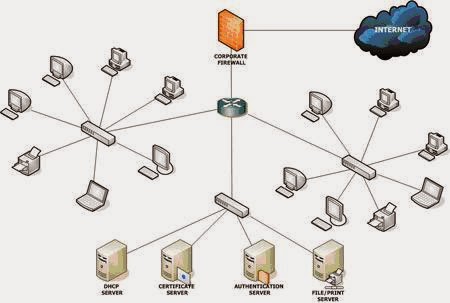
If you were to look at an illustration of a group of computers in a LAN, it would be impossible to determine if the network was a peer-to-peer or a client/server environment. Even a videotape of this same LAN during a typical workday would reveal few clues as to whether it is peer-to-peer or client/server. Yet, the differences are huge. Since you can’t see the differences, you might guess correctly that they are not physical but logical.

Physical vs. Logical Concepts
Throughout this book, you’ll see us refer to physical and logical networking topics. Generally speaking, when we’re referring to the physical aspects of a network, we’re referring to some aspect of the network that you can touch or that has physical substance (like electrons, electrical pulses, or the way cables are run). That is, they exist in the physical world. Logical concepts, on the other hand, are more imaginary and esoteric and deal with things like how data flows in a network. So, when we’re describing something as either physical or logical in nature, you’ll understand how those terms apply.

Peer-to-Peer Network
In peer-to-peer networks, the connected computers have no centralized authority. From an authority viewpoint, all of these computers are equal. In other words, they are peers. If a user
of one computer wants access to a resource on another computer, the security check for access rights is the responsibility of the computer holding the resource. Each computer in a peer-to-peer network can be both a client that requests resources and a server
that provides resources. This is a great arrangement, provided the following conditions are met: 
 

  • Each user is responsible for local backup.
  •   Security considerations are minimal.
  • A limited number of computers are involved. 

Networks that run Windows 95/98 as their network operating system and networks using Windows NT, 2000, or XP in a workgroup are considered peer-to-peer networks. Figure 1.3 shows an example of a peer-to-peer network. Peer-to-peer networks present some challenges. For example, backing up company data becomes an iffy proposition. Also, it can be difficult to remember where you stored a file. Finally, because security is not centralized, users and passwords must be maintained separately on each machine, as you can see in Figure 1.3. Passwords may be different for the same users on different machines 
(or for different resources on Windows 9x machines).

Client/Server Network
In contrast to a peer-to-peer network, a client/server network uses a network operating system designed to manage the entire network from a centralized point, which is the server. Clients make requests of the server, and the server responds with the information or  ccess to a resource.

Example:
A peer-to-peer network


Client/server networks have some definite advantages over peer-to-peer networks. For one thing, the network is much more organized. It is easier to find files and resources because they are stored on the server. Also, client/server networks generally have much tighter security. All usernames and passwords are stored in the same database (on the server), and individual users can’t use the server as a workstation. Finally, client/server networks have better performance and can scale almost infinitely. It is not uncommon to see client/server networks with tens of thousands of workstations. Figure 1.4 shows a sample client/server network. Note that the server now holds the database of user accounts, passwords, and access rights.
Note that today’s networks are very often hybrids of the peer-to-peer model and the client/server model. Clients of early Novell NetWare networks, for example, had no ability to share  their resources, not that they had many worth sharing, for the most part. Conversely, today’s Microsoft and Apple networks, for example, have well-defined servers. They also allow the simultaneous sharing of resources from lesser devices that run what are considered workstation operating systems, which are capable of fewer inbound connections but are running the server service nonetheless. Purists shun the less organized mixture of this resource sharing among servers and clients alike, but the reality is that most networks would be worse off for losing this capability.

Example:
A client/server network


Host, Workstation, and Server


Host, Workstation, and Server
Networks are made up of lots of different components, but the three most common network
entities are the host, workstation, and server. For the Network+ exam, you need a good understanding
of these three primary components of a network. Each one of these items can be found
on most networks.

Understanding Workstations
In the classic sense, a
workstation
is a powerful computer used for drafting or other math-intensive
applications. The term is also applied to a computer that has multiple central processing
units (CPUs) available to users. In the network environment, the term
workstation
normally
refers to any computer that is connected to the network and used by an individual to do work.
It is important to distinguish between workstations and clients. A
client
is any network entity
that can request resources from the network; a workstation is a computer that can request
resources. Workstations can be clients, but not all clients are workstations. For example, a
printer can request resources from the network, but it is a client, not a workstation.

Understanding Servers
In the truest sense, a server does exactly what the name implies: It provides resources to the clients
on the network (“serves” them, in other words). Servers are typically powerful computers
that run the software that controls and maintains the network. This software is known as the
network operating system.
Servers are often specialized for a single purpose. This is not to say that a single server can’t
do many jobs, but, more often than not, you’ll get better performance if you dedicate a server
to a single task. Here are some examples of servers that are dedicated to a single task:
  •  File Server
Holds and distributes files.
  •  Print Server
Controls and manages one or more printers for the network.
  •  Proxy Server 
Performs a function on behalf of other computers. (Proxy means “on behalf of.”)
  •  Application Server
Hosts a network application.

  •  Web Server
Holds and delivers web pages and other web content using the Hypertext Transfer Protocol (HTTP).
  • Mail Server
Hosts and delivers e-mail. It’s the electronic equivalent of a post office.
  •   Fax Server 
Sends and receives faxes (via a special fax board) for the entire network without the need for paper.
  •  Remote Access Server 
Listens for inbound requests to connect to the network from the outside.
Remote access servers provide remote users (working at home or on the road) with a connection
to the network, either via modems or an IP connection.
  • Telephony Server
 Functions as a “smart” answering machine for the network. It can also perform
call center and call-routing functions.
Notice that each server type’s name consists of the type of service the server provides (remote
access, for example) followed by the word server, which, as you remember, means to serve.
Regardless of the specific role (or roles) these servers play, they should all have the following
in common:
_ Hardware and/or software for data integrity (such as backup hardware and software)
_ The capability to support a large number of clients
Figure 1.1, earlier in this chapter, shows a sample network. Physical resources, such as harddrive
space and memory, must be greater in a server than in a workstation because the server
needs to provide services to many clients. Also, a server should be located in a physically secure
area. Figure 1.2 shows a sample network that includes both workstations and servers. Note that
there are more workstations than servers because a few servers can serve network resources to
hundreds of users simultaneously.

Example:
A sample network including servers and workstations


Understanding Hosts
The term host covers pretty much every other networking device, but it can also refer to a workstation
and server and is most commonly used when discussing TCP/IP-related services and
functions. In fact, a host, in TCP/IP terms, is any network device that has an IP address. Workstations,
servers, and any other network device (as long as it has one or more IP addresses) can
all be considered hosts. In conversation, you may also hear the word host used to describe any
minicomputer or server. For the Network+ exam, however, you should stick to the classic definition
used here (i.e., workstations, servers, and other network devices).
The term host comes from the era when the only intelligent devices on the network were
mainframes, which were commonly referred to as hosts regardless of TCP/IP functionality.
Nearly all other devices were known as dumb terminals, but no other device had intelligence,
only the mainframe. As TCP/IP came into the picture, only the mainframes, or hosts, received
IP addresses. This is the same era that produced the term gateway to refer to any layer 3 intermediate
device, such as a router. Just as the term gateway remains in common use today, such
as in the very common term default gateway, the term host is still used, but its use is much
broader now that nearly every end and intermediate device is intelligent and has at least one IP
address, making them hosts.


Wide Area Network

Wide Area Network:

Chances are you are an experienced wide area network (WAN) user and don’t even know it. If you have ever connected to the Internet, you have used the largest WAN on the planet. A WAN is any network that crosses metropolitan, regional, or national boundaries. Most networking professionals define a WAN as any network that uses routers and public network links. The Internet fits both definitions.

       WANs differ from LANs in the following ways:
_
                WANs cover greater distances.
_
                WAN speeds are slower.
_
                WANs can be connected on demand or permanently connected; LANs have permanent
                connections between stations.

_
                WANs can use public or private network transports; LANs primarily use private network
                transports.

_
                WANs can use either full- or half-duplex 
communications. LANs have typically used halfduplex
                communications, although many local area networks today use full-duplex communications
                (see the sidebar “Full-Duplex vs. Half-Duplex Communications”).

The Internet is actually a specific type of WAN. The Internet is a collection of networks that
are interconnected and, therefore, is technically an internetwork
( Internet is short for the word internetwork ).
                A WAN can be centralized or distributed. A centralized WAN consists of a central computer (at
a central site) to which other computers and dumb terminals connect. The Internet, on the other
hand, consists of many interconnected computers in many locations. Thus, it is a distributed WAN.


Full-Duplex vs. Half-Duplex Communications :

All network communications (including LAN and WAN communications) can be categorized as half-duplex or full-duplex. With half-duplex, communications happen in both directions, but in only one direction at a time. When two computers communicate using half-duplex, one computer sends a signal and the other receives; then, at some point, they switch sending and receiving roles. Chances are that you are familiar with half-duplex communications. If you have ever used a push-to-talk technology, such as a CB radio or walkie-talkie, you were communicating via half-duplex: One person talks, and then the other person talks. Full-duplex, on the other hand, allows communication in both directions simultaneously. Both stations can send and receive signals at the same time. Full-duplex communications are similar

to a telephone call, in which both people can talk simultaneously.

Example:


Tuesday, November 12, 2013

Local Area Network


Local Area Network:

By definition, a local area network (LAN) is limited to a specific area, usually an office, and cannot extend beyond the boundaries of a single building. The first LANs were limited to a range (from a central point to the most distant computer) of 185 meters (about 600 feet) and no more than 30 computers. Today’s technology allows a larger LAN, but practical administration limitations require dividing it into small, logical areas called workgroups. A workgroup is a collection of individuals (a sales department, for example) who share the same files and databases over the LAN. Figure 1.1 shows an example of a small LAN and its workgroups.

Example:

FIGURE 1 . 1 A small LAN


Network Elements


Network Elements:

In the computer world, the term network describes two or more connected computers that can share resources such as data, a printer, an Internet connection, applications, or a combination of these. In the following sections, we’ll discuss each type of network and describe the situation that is most appropriate for its use.


Network Fundamentals

Network+™  
"Quoting one of e-books"
Chapter 1 :

            Network Fundamentals :

                  Network Elements:
                        Local Area Network
                        Wide Area Network
                        Host, Workstation, andServer
                        Peer-to-Peer vs.Client/Server Architecture

                  Physical Topologies:
                        Bus Topology
                        Star Topology
                        Ring Topology
                        Mesh Topology
                        Backbones and Segments
                        Selecting the RightTopology

                    Physical Media:
                        Coaxial Cable
                        Twisted-Pair Cable
                        Fiber-Optic Cable
                        Cable Type Summary

                    Common NetworkConnectivity Devices:
                        NIC
                        Hub
                        Switch
                        Bridge
                        Router
                        Gateways
                        Other Devices

                    Summary
                    Exam Essentials
                    Review Questions

                    Answers to Review Questions 

*************
"Quoting one of e-books"

Saturday, June 15, 2013

Design Hotspot-30 Server Mikrotik

Design Hotspot-30  Server Mikrotik


حمل من هنا 

رجاء تغيير بيانات الاتصال 

مع تحيات كنزى نت

Wednesday, May 29, 2013

Mikrotik SSH (Secure Shell) Server and Client

 Mikrotik SSH (Secure Shell) Server and Client


Quoting one of e-books


Table of Contents
Summary
Specifications
Related Documents
Additional Documents
SSH Server
Description
Property Description
Example
SSH Client
Property Description
Example

General Information

Summary
SSH Client authenticates server and encrypts traffic between the client and server. You can use
SSH just the same way as telnet - you run the client, tell it where you want to connect to, give your
username and password, and everything is the same after that. After that you won't be able to tell
that you're using SSH. The SSH feature can be used with various SSH Telnet clients to securely
connect to and administrate the router.
The MikroTik RouterOS supports:
• SSH 1.3, 1.5, and 2.0 protocol standards
• server functions for secure administration of the router
• telnet session termination with 40 bit RSA SSH encryption is supported
• secure ftp is supported
• preshared key authentication is not supported
The MikroTik RouterOS has been tested with the following SSH telnet terminals:
• PuTTY
• Secure CRT
• OpenSSH GNU/Linux client
Specifications
Packages required: security
License required: level1
Home menu level: /system ssh
Standards and Technologies: SSH
Hardware usage: Not significant

Related Documents

• Package Management
Additional Documents
• http://www.freessh.org/
SSH Server
Home menu level: /ip service
Description
SSH Server is already up and running after MikroTik router installation. The default port of the
service is 22. You can set a different port number.

Property Description
name (name) - service name
port (integer: 1..65535) - port the service listens to
address (IP address | netmask; default: 0.0.0.0/0) - IP address from which the service is accessible

Example
Let's change the default SSH port (22) to 65 on which the SSH server listens for requests:
[admin@MikroTik] ip service> set ssh port=65
[admin@MikroTik] ip service> print
Flags: X - disabled, I - invalid
# NAME PORT ADDRESS CERTIFICATE
0 telnet 23 0.0.0.0/0
1 ftp 21 0.0.0.0/0
2 www 80 0.0.0.0/0
3 ssh 65 0.0.0.0/0
4 X www-ssl 443 0.0.0.0/0
[admin@MikroTik] ip service>
SSH Client
Command name: /system ssh
Property Description
port (integer; default: 22) - which TCP port to use for SSH connection to a remote host
user (text; default: admin) - username for the SSH login

Example
[admin@MikroTik] > /system ssh 192.168.0.1 user=pakalns port=22
admin@192.168.0.1's password:
MMM MMM KKK TTTTTTTTTTT KKK
MMMM MMMM KKK TTTTTTTTTTT KKK
MMM MMMM MMM III KKK KKK RRRRRR OOOOOO TTT III KKK KKK
MMM MM MMM III KKKKK RRR RRR OOO OOO TTT III KKKKK
MMM MMM III KKK KKK RRRRRR OOO OOO TTT III KKK KKK
MMM MMM III KKK KKK RRR RRR OOOOOO TTT III KKK KKK
MikroTik RouterOS 2.9rc7 (c) 1999-2005 http://www.mikrotik.com/
Terminal unknown detected, using single line input mode
[admin@MikroTik] >


See you in the next lesson
Mr.Mohamed samir™


Thursday, April 25, 2013

Design Hotspot-20 Server Mikrotik

Design Hotspot-20  Server Mikrotik


حمل من هنا 

رجاء تغيير بيانات الاتصال 

مع تحيات كنزى نت 

Monday, March 11, 2013

How to Getting Started the Dude

How to Getting Started the Dude 

Quoting one e-books


Getting Started
When you first start the Dude client, it launches the local server and automatically connects to 
it. Then you can disconnect and choose another server to connect to. You should remember that 
the client only works when connected to an either local or remote server.
If you do not have any Dude server running yet, you should start it. There is a button on the top
of the application window called “Server”, which has indicator of whether the local server is
running (it is green if the local server is running). If you press it, a new window will appear that
allows you to start/stop the local Dude server, as well as completely reset its configuration.
When a server is started, you can connect to it pressing the Connect button. There are three 
connection modes:
local – to connect to the local Dude server (note that this option will not work for Linux
users running the Dude under Wine, you should use remote connection to 127.0.0.1 host
instead to connect to the local Dude server)
remote – to connect insecurely (nothing, including passwords, is encrypted) to a remote
Dude server
secure – to connect securely to a remote Dude server
Remote connection by default is using TCP 2210 port in regular mode or TCP 2211 port in
secure mode, so make sure these ports are not limited by a firewall. The ports may be changed
in the server's Global Settings menu. The default username for connecting to a server is
“admin” with no password. You can change this later.
Note for Linux users: you should start the Dude from the root user (or delegate some 
permissions to your regular user), or else the Dude will not be able to ping hosts.

Tuesday, March 5, 2013

The Dude Device discovery

The Dude/Device discovery

Quoting one of the websites


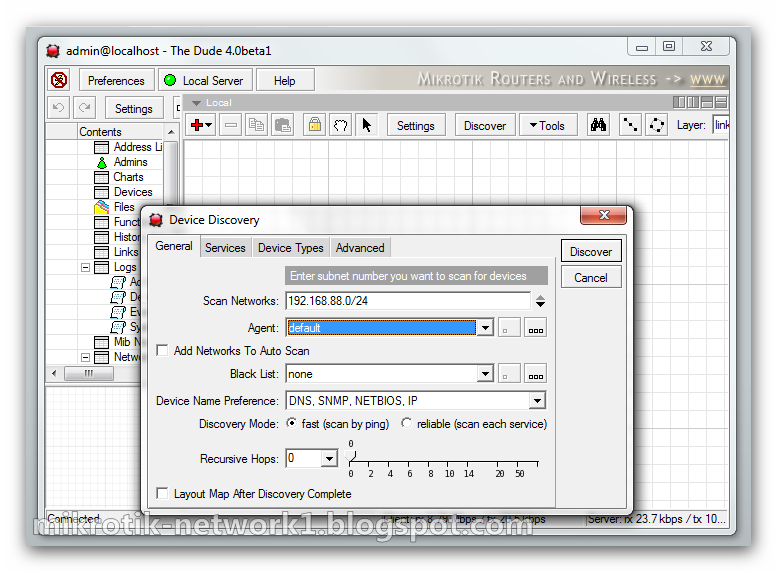
The Dude can automaticall scan ranges of IP addresses to discover active devices on your networks. To do this, you have to use the Discovery interface. Upon first use of the Dude, the discovery window is opened automatically, however, you can also open the discovery interface later, by clicking the Discovery button in the main button panel.


General


  • Scan networks - enter the IP networks that you wish The Dude to scan. Click the black "down" arrow to add more networks
  • Agent - select another Dude agent for the scan task. The Default agent is selected upon first use, and it's the local server. Click on the ... icon to browse for other agents or to add new agents.
  • Add networks to auto scan - when checked, this option will keep updating the map when new devices appear even after the initial scan is finished. The default scan interval is one hour, you can change this in the main Dude Settings menu.
  • Black list - You can select which devices should not be scanned. This is useful if you have printers that react strangely to port scans, or devices that don't like to be pinged. Click the ... button to create lists of devices to be used in the Blacklist.
  • Device name preference - decides how to name your devices by default. Can choose between DNS, SNMP, NETBIOS and IP or combinations of those. If the field is set to DNS to SNMP to IP, then DNS name will be used when available, if it is not, then SNMP-derived name will be used, but if neither of them are detected, then IP address will be used as the device name.
  • Discovery mode - can choose between Fast scan by ping and Reliable scan that scans each service. When choosing the fast scan, all devices that can respond to ping will be added to the Map, and then their services will be proofed. However, if you choose Reliable scan, the Dude will look for the specified services even in the devices that couldn't be pinged. This is helpful if you have devices which can't be pinged, or which have the ping blocked.
  • Recursive hops - whether to scan recursively all the networks found connected to the initially discovered devices. I.e., in case there were some network devices detected which are connected to more than one network, whether to continue scanning also the network these devices are connected to. This parameter is set to the maximal hop (network device) number, which to scan the connected networks from. Important! It is not recommended to set more than 1 hop at your initial discovery, and never to set more than 5, as this will most likely scan thousands of devices in all of your local networks, and will take a long time.
  • Layout after discovery is complete will not only put the devices on the map in sequential rows, but will also attempt to draw a logical map layout. Especially useful if discovering by more than 1 hop.

Services

This tab defines which services need to be scanned at the time of discovery. To improve discovery time, you should uncheck the services you are not interested in. This also decides which services to probe at IP addresses that did not respond to ping.

the ... button allows you to add new probes that will look for other services.


Device Types

The dude can also automatically assign icons to your devices, based on the device type. Device types can be configured by clicking the ...button. Each device can have required identification patterns, based on services The Dude discovered running on it. For example the predefined requirement for a "Mail server" device type is a running SMTP service. You can change the required services for existing devices, or add new devices with new requirements.


Advanced

In the Advanced tab of the Discovery window you can deselect certain tasks that you don't want to be done.

Identify device types - follow the rules set in the Device Types menu

Add networks - include icons for networks

  • Add links - link devices together with lines
  • Layer 2 structure -
  • PPP links
  • Graph service poll times
  • Graph link Bit rate
  • Add Serviceless (deselected by default)


Discovery Process

After you have selected all the options, click on Discover and the process will be started. This will be indicated by aScanning information in the bottom edge of the Dude main window


It is possible to monitor the scan progress in the map settingswindow. Click the Settings button in the main Dude window and in the General view you will see the currently running scan, and the time of the next scan, if auto-scan was requested.


It is possible to monitor the scan progress in the map settingswindow. Click the Settings button in the main Dude window and in the General view you will see the currently running scan, and the time of the next scan, if auto-scan was requested.