

Hotspot Mikrotik 777
Technology has been used Bootstrap Compatible Mobile.

Design Hotspot-12 beautiful Server Mikrotik
Design Hot Spot Mikrotik Free

Hotspot login server free
Hotspot login server free.

Merge 2 lines in server Pfsense?
Merge 2 lines in server Pfsense server free.

setup squid cahce in Ubuntu
How to setup squid cahce in Ubuntu ?
Saturday, June 15, 2013

Wednesday, May 29, 2013
Mikrotik SSH (Secure Shell) Server and Client

Mikrotik SSH (Secure Shell) Server and Client
Quoting one of e-books
Table of Contents
Summary
Specifications
Related Documents
Additional Documents
SSH Server
Description
Property Description
Example
SSH Client
Property Description
Example
General Information
Summary
SSH Client authenticates server and encrypts traffic between the client and server. You can use
SSH just the same way as telnet - you run the client, tell it where you want to connect to, give your
username and password, and everything is the same after that. After that you won't be able to tell
that you're using SSH. The SSH feature can be used with various SSH Telnet clients to securely
connect to and administrate the router.
The MikroTik RouterOS supports:
• SSH 1.3, 1.5, and 2.0 protocol standards
• server functions for secure administration of the router
• telnet session termination with 40 bit RSA SSH encryption is supported
• secure ftp is supported
• preshared key authentication is not supported
The MikroTik RouterOS has been tested with the following SSH telnet terminals:
• PuTTY
• Secure CRT
• OpenSSH GNU/Linux client
Specifications
Packages required: security
License required: level1
Home menu level: /system ssh
Standards and Technologies: SSH
Hardware usage: Not significant
Related Documents
• Package Management
Additional Documents
• http://www.freessh.org/
SSH Server
Home menu level: /ip service
Description
SSH Server is already up and running after MikroTik router installation. The default port of the
service is 22. You can set a different port number.
Property Description
name (name) - service name
port (integer: 1..65535) - port the service listens to
address (IP address | netmask; default: 0.0.0.0/0) - IP address from which the service is accessible
Example
Let's change the default SSH port (22) to 65 on which the SSH server listens for requests:
[admin@MikroTik] ip service> set ssh port=65
[admin@MikroTik] ip service> print
Flags: X - disabled, I - invalid
# NAME PORT ADDRESS CERTIFICATE
0 telnet 23 0.0.0.0/0
1 ftp 21 0.0.0.0/0
2 www 80 0.0.0.0/0
3 ssh 65 0.0.0.0/0
4 X www-ssl 443 0.0.0.0/0
[admin@MikroTik] ip service>
SSH Client
Command name: /system ssh
Property Description
port (integer; default: 22) - which TCP port to use for SSH connection to a remote host
user (text; default: admin) - username for the SSH login
Example
[admin@MikroTik] > /system ssh 192.168.0.1 user=pakalns port=22
admin@192.168.0.1's password:
MMM MMM KKK TTTTTTTTTTT KKK
MMMM MMMM KKK TTTTTTTTTTT KKK
MMM MMMM MMM III KKK KKK RRRRRR OOOOOO TTT III KKK KKK
MMM MM MMM III KKKKK RRR RRR OOO OOO TTT III KKKKK
MMM MMM III KKK KKK RRRRRR OOO OOO TTT III KKK KKK
MMM MMM III KKK KKK RRR RRR OOOOOO TTT III KKK KKK
MikroTik RouterOS 2.9rc7 (c) 1999-2005 http://www.mikrotik.com/
Terminal unknown detected, using single line input mode
[admin@MikroTik] >
See you in the next lesson
Mr.Mohamed samir™
Thursday, April 25, 2013

Monday, March 11, 2013
How to Getting Started the Dude
How to Getting Started the Dude

Getting Started
When you first start the Dude client, it launches the local server and automatically connects to
it. Then you can disconnect and choose another server to connect to. You should remember that
the client only works when connected to an either local or remote server.
If you do not have any Dude server running yet, you should start it. There is a button on the top
of the application window called “Server”, which has indicator of whether the local server is
running (it is green if the local server is running). If you press it, a new window will appear that
allows you to start/stop the local Dude server, as well as completely reset its configuration.
When a server is started, you can connect to it pressing the Connect button. There are three
connection modes:
local – to connect to the local Dude server (note that this option will not work for Linux
users running the Dude under Wine, you should use remote connection to 127.0.0.1 host
instead to connect to the local Dude server)
remote – to connect insecurely (nothing, including passwords, is encrypted) to a remote
Dude server
secure – to connect securely to a remote Dude server
Remote connection by default is using TCP 2210 port in regular mode or TCP 2211 port in
secure mode, so make sure these ports are not limited by a firewall. The ports may be changed
in the server's Global Settings menu. The default username for connecting to a server is
“admin” with no password. You can change this later.
Note for Linux users: you should start the Dude from the root user (or delegate some
permissions to your regular user), or else the Dude will not be able to ping hosts.
Quoting one e-books
When you first start the Dude client, it launches the local server and automatically connects to
it. Then you can disconnect and choose another server to connect to. You should remember that
the client only works when connected to an either local or remote server.
If you do not have any Dude server running yet, you should start it. There is a button on the top
of the application window called “Server”, which has indicator of whether the local server is
running (it is green if the local server is running). If you press it, a new window will appear that
allows you to start/stop the local Dude server, as well as completely reset its configuration.
When a server is started, you can connect to it pressing the Connect button. There are three
connection modes:
local – to connect to the local Dude server (note that this option will not work for Linux
users running the Dude under Wine, you should use remote connection to 127.0.0.1 host
instead to connect to the local Dude server)
remote – to connect insecurely (nothing, including passwords, is encrypted) to a remote
Dude server
secure – to connect securely to a remote Dude server
Remote connection by default is using TCP 2210 port in regular mode or TCP 2211 port in
secure mode, so make sure these ports are not limited by a firewall. The ports may be changed
in the server's Global Settings menu. The default username for connecting to a server is
“admin” with no password. You can change this later.
Note for Linux users: you should start the Dude from the root user (or delegate some
permissions to your regular user), or else the Dude will not be able to ping hosts.
Tuesday, March 5, 2013
The Dude Device discovery
The Dude/Device discovery
Quoting one of the websites
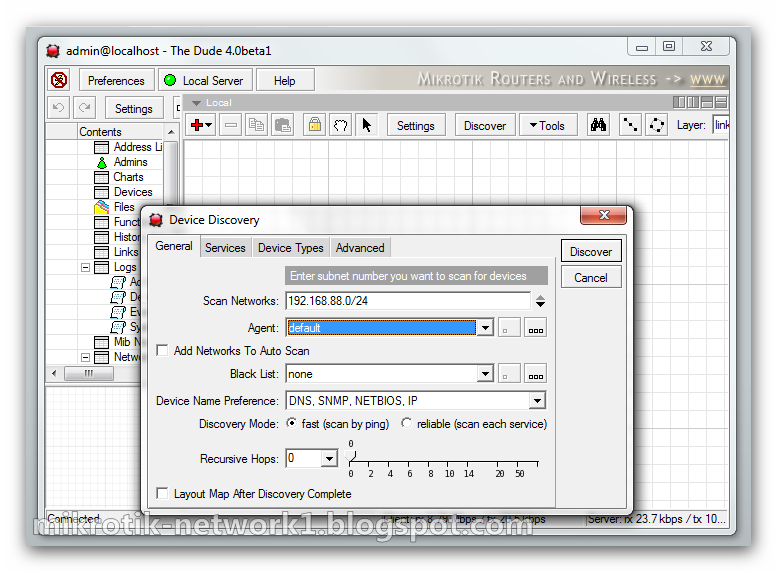
The Dude can automaticall scan ranges of IP addresses to discover active devices on your networks. To do this, you have to use the Discovery interface. Upon first use of the Dude, the discovery window is opened automatically, however, you can also open the discovery interface later, by clicking the Discovery button in the main button panel.
General

- Scan networks - enter the IP networks that you wish The Dude to scan. Click the black "down" arrow to add more networks
- Agent - select another Dude agent for the scan task. The Default agent is selected upon first use, and it's the local server. Click on the ... icon to browse for other agents or to add new agents.
- Add networks to auto scan - when checked, this option will keep updating the map when new devices appear even after the initial scan is finished. The default scan interval is one hour, you can change this in the main Dude Settings menu.
- Black list - You can select which devices should not be scanned. This is useful if you have printers that react strangely to port scans, or devices that don't like to be pinged. Click the ... button to create lists of devices to be used in the Blacklist.
- Device name preference - decides how to name your devices by default. Can choose between DNS, SNMP, NETBIOS and IP or combinations of those. If the field is set to DNS to SNMP to IP, then DNS name will be used when available, if it is not, then SNMP-derived name will be used, but if neither of them are detected, then IP address will be used as the device name.
- Discovery mode - can choose between Fast scan by ping and Reliable scan that scans each service. When choosing the fast scan, all devices that can respond to ping will be added to the Map, and then their services will be proofed. However, if you choose Reliable scan, the Dude will look for the specified services even in the devices that couldn't be pinged. This is helpful if you have devices which can't be pinged, or which have the ping blocked.
- Recursive hops - whether to scan recursively all the networks found connected to the initially discovered devices. I.e., in case there were some network devices detected which are connected to more than one network, whether to continue scanning also the network these devices are connected to. This parameter is set to the maximal hop (network device) number, which to scan the connected networks from. Important! It is not recommended to set more than 1 hop at your initial discovery, and never to set more than 5, as this will most likely scan thousands of devices in all of your local networks, and will take a long time.
- Layout after discovery is complete will not only put the devices on the map in sequential rows, but will also attempt to draw a logical map layout. Especially useful if discovering by more than 1 hop.

Services
This tab defines which services need to be scanned at the time of discovery. To improve discovery time, you should uncheck the services you are not interested in. This also decides which services to probe at IP addresses that did not respond to ping.
the ... button allows you to add new probes that will look for other services.

Device Types
The dude can also automatically assign icons to your devices, based on the device type. Device types can be configured by clicking the ...button. Each device can have required identification patterns, based on services The Dude discovered running on it. For example the predefined requirement for a "Mail server" device type is a running SMTP service. You can change the required services for existing devices, or add new devices with new requirements.

Advanced
In the Advanced tab of the Discovery window you can deselect certain tasks that you don't want to be done.
Identify device types - follow the rules set in the Device Types menu
Add networks - include icons for networks
- Add links - link devices together with lines
- Layer 2 structure -
- PPP links
- Graph service poll times
- Graph link Bit rate
- Add Serviceless (deselected by default)

Discovery Process
After you have selected all the options, click on Discover and the process will be started. This will be indicated by aScanning information in the bottom edge of the Dude main window

It is possible to monitor the scan progress in the map settingswindow. Click the Settings button in the main Dude window and in the General view you will see the currently running scan, and the time of the next scan, if auto-scan was requested.


It is possible to monitor the scan progress in the map settingswindow. Click the Settings button in the main Dude window and in the General view you will see the currently running scan, and the time of the next scan, if auto-scan was requested.
Sunday, March 3, 2013
What is the Dude
What is the Dude ?

The Dude is a visual and easy to use network monitoring and management system designed to
represent network structure in one or more crosslinked graphical diagrams, allowing you to
draw (includes automatic network discovery tool) and monitor your network whatever
complicated it can be. The Dude is capable of monitoring particular services run on the network
hosts, and alerting you about any changes in their status. It can read statistics from the device
monitored and show you graphs of the monitored values, allows you to test and connect to the
devices easily, and provides some very basic RouterOS configuration tools.
It is written in two parts:
Dude server is the actual program, which runs in background. It does not have any
graphical interface, and may only be controlled by a Dude client application located either
on local machine, or anywhere on the network. There is also a web interface to basic
functionality, mostly designed as a quick and accessible review tool, not a full-fledged
configuration application.
Dude client may connect to the local or a remote Dude server, and is used as a graphical
interface to it. That means that every action is really executed on the server machine and
the client is just showing pictures. Thus, user window layouts are stored on the server and
are not lost on disconnect.
Quoting one of the e-books
represent network structure in one or more crosslinked graphical diagrams, allowing you to
draw (includes automatic network discovery tool) and monitor your network whatever
complicated it can be. The Dude is capable of monitoring particular services run on the network
hosts, and alerting you about any changes in their status. It can read statistics from the device
monitored and show you graphs of the monitored values, allows you to test and connect to the
devices easily, and provides some very basic RouterOS configuration tools.
It is written in two parts:
Dude server is the actual program, which runs in background. It does not have any
graphical interface, and may only be controlled by a Dude client application located either
on local machine, or anywhere on the network. There is also a web interface to basic
functionality, mostly designed as a quick and accessible review tool, not a full-fledged
configuration application.
Dude client may connect to the local or a remote Dude server, and is used as a graphical
interface to it. That means that every action is really executed on the server machine and
the client is just showing pictures. Thus, user window layouts are stored on the server and
are not lost on disconnect.
Saturday, February 16, 2013
How to Install Vsftpd "FTP SERVER" for Ubuntu
How to Install Vsftpd "FTP SERVER" for Ubuntu
Open command line
sudo apt-get install vsftpd
nano /etc/vsftpd.conf
# line 23: change( disable anonymous )
anonymous_enable=NO
# line 26: uncomment
local_enable=YES
# line 29: uncomment
write_enable=YES
# line 97,98: uncomment ( allow ascii mode transfer )
ascii_upload_enable=YES
ascii_download_enable=YES
# line 120: uncomment ( enable chroot )
chroot_local_user=YES
# line 121: uncomment ( enable chroot list )
chroot_list_enable=YES
# line 123: uncomment ( enable chroot list )
chroot_list_file=/etc/vsftpd.chroot_list
# line 129: uncomment
ls_recurse_enable=YES
# add at the last line
# specify root directory ( if don't specify, users' home directory become FTP home directory)
local_root=public_html
# use localtime
use_localtime=YES
root@www:~# vi /etc/vsftpd.chroot_list
# add users you allow to move over their home directory
pangolin
Ctrl+x Enter "y"
Restart "vsftpd"
service vsftpd restart
Tuesday, December 18, 2012


Monday, December 17, 2012


Thursday, November 29, 2012
Thursday, November 22, 2012
Tuesday, September 25, 2012
What’s New in Windows Server R2 ?
Quoting one of e-books
What’s New in Windows Server R2 ?
* What Is R2?
* The Focus for R2
* Top Reasons to Upgrade
******
What Is R2?
---------------------------------------------------------------*
Windows Server 2008 R2, or simply “R2” for short, is the second release of Windows
Server 2008. It isn’t a completely new release, but rather adds additional features and
refinements to the existing release.
Release Cadence
--------------------------------------------------------------*
Beginning with Windows Server 2003, Microsoft moved to a server release cycle that
was designed to have a major release every three to five years (Windows Server 2003,
Windows Server 2008), with a minor release at the approximate midpoint of the major
release cycle (Windows Server 2003 R2, Windows Server 2008 R2). This change allowed
Microsoft to move away from including new functionality in service packs (SPs), while
providing customers with a more stable and predictable server environment.
An R2 release is more than an SP, but less than a full major release. Windows Server
2008 R2 includes Windows Server 2008 SP2, but it also adds many new features and
functionality that were not part of Windows Server 2008.
Licensing and Packaging Changes
There are some minor licensing changes included in Windows Server 2008 R2, and one
completely new edition since the original release of Windows Server 2008. The new edition is
Windows Server 2008 R2 Foundation, an original equipment manufacturer (OEM)–only edition
that is an entry-level small-business solution limited to a maximum of 15 users, which has
several other restrictions as well.
More Info For more information on Windows Server 2008 R2 editions, includingWindowsServer 2008 R2 Foundation, and full details and edition comparisons for allWindowsServer 2008 R2 editions, see: http://www.microsoft.com/windowsserver2008/en/us/R2-editions.aspx.
The licensing of Windows Server 2008 R2 is very similar to that of Windows Server 2008,
and you can use Windows Server 2008 Client Access Licenses (CALs) for Windows Server 2008
R2 without having to upgrade your license. There is, however, one important difference that
is introduced with Windows Server 2008 R2—there is no requirement to upgrade to Windows
Server 2008 CALs when you install Windows Server 2008 R2 on a physical server that is only
used with the Hyper-V role.
Another difference between Windows Server 2008 and Windows Server 2008 R2 licensing
is caused by the name change from Terminal Services (TS) in Windows Server 2008 to Remote
Desktop Services (RDS) in Windows Server 2008 R2. This is more than just a name change,
and we cover the new features and functionality in depth in Chapter 4, “Remote Desktop Services
and VDI: Centralizing Desktop and Application Management.” However, for the licensing,
it really is just a name change—Windows Server 2008 R2 RDS CALs and Windows Server
2008 TS CALs can both be used for the full functionality of Windows Server 2008 R2 RDS.
There are also new license suite options in Windows Server 2008 R2, with the introduction
of the new Virtual Desktop Infrastructure (VDI) Standard and Virtual Desktop Infrastructure
Premium suites. We cover these new suite licenses in Chapter 4 when we talk about the new
VDI functionality that R2 makes possible.
The Focus for R2
--------------------------------------------------------------*
It would be presumptuous of us to talk about the “vision” that Microsoft had for Windows
Server 2008 R2, but we can certainly see a pattern in where the major improvements are:
Virtualization
Management
Scalability
Web
Networking and access
“Better Together” with Windows 7
We take a look at each of these areas throughout this book, but let’s start with a quick
high-level look at what has changed in each area.
Virtualization
Direct support for server virtualization, in the form of the Hyper-V hypervisor, was one of the
most important and highly anticipated improvements in Windows Server 2008. With the release
of Windows Server 2008 R2, Microsoft extends Hyper-V virtualization to include support
for client desktop virtualization, and adds important new capabilities for dynamic disk allocation,
live migration, and improved scalability and redundancy. We cover the improvements in
Hyper-V server virtualization capabilities in Chapter 3, “Hyper-V: Scaling and Migrating Virtual
Machines.”
Virtualization, however, isn’t limited to machine virtualization, but also includes presentation
virtualization (RDS), application virtualization (App-V), and client desktop virtualization
(VDI).
Windows Server 2008 R2 adds improvements in RDS that provide a more seamless integration
with Windows 7 clients, including full support for Windows Aero and multiple monitors.
Application virtualization support in R2 is improved, and the addition of the Remote Desktop
Virtualization Host (RD Virtualization Host) role service enables full desktop virtualization. We
cover VDI and RDS
Management
There are substantial improvements in the way Windows Server 2008 R2 can be managed,
both graphically and from the command line. A new version of Windows PowerShell
provides enhanced remote capabilities and is now available as an installation option for
Windows Server
Core. Graphical management is also improved, with Server Manager now
fully supported remotely, and many of the management consoles are better integrated into
Server Manager, enabling remote management. The improvements in Windows PowerShell
are covered
throughout the book, and we cover the specifics of setting up remote Server
Manager,
installing Windows PowerShell in Server Core, and many of the changes to rolebased
administration in Chapter 2, “Installation and Configuration: Adding R2 to Your World.”
Windows Server 2008 R2 includes a new Active Directory (AD) schema that enables an AD
Recycle Bin, a new set of Active Directory Windows PowerShell cmdlets, and improvements in
daily AD administration.
Improvements in storage management and file server management are part of Windows
Server 2008 R2. The new Windows File Classification Infrastructure (FCI) provides insight into
your data by automating classification processes so that you can manage your data more
effectively and economically. BranchCache improves bandwidth utilization of wide area
network
(WAN) connections by enabling local caching of data on Windows Server 2008 R2
and Windows 7 computers at branch offices. Improvements in processor utilization, startup
speed, and input/output (I/O) performance make the centralization of storage on iSCSI storage
area networks (SANs) easier and more efficient. We cover the details of file system and
storage.
Scalability
Windows Server 2008 R2 is the first version of Windows Server to support only 64-bit processors.
Further, Windows Server 2008 R2 now supports up to 256 logical processor cores for
a single operating system instance. Hyper-V virtual machines are able to address up to 64
logical cores in a single host. With the improvements in storage performance and efficiency,
and reduced graphical user interface (GUI) overhead, this gives Windows Server 2008 R2
the ability to scale up to larger workloads. Additionally, the R2 version of Hyper-V also adds
performance enhancements that increase virtual machine performance and reduce power
consumption. Hyper-V now supports Second Level Address Translation (SLAT), which uses
new features on today’s CPUs to improve virtual machine (VM) performance while reducing
processing load on the Windows Hypervisor. These improvements increase your ability to
consolidate workloads and servers onto fewer physical servers, reducing administration overhead,
power consumption, and rack costs. Chapters 2 and 3 cover these improvements.
Network Load Balancing (NLB) allows Windows Server 2008 R2 to scale out across multiple
servers. Windows Server 2008 R2 includes improvements in support for applications and
services that require persistent connections and also improves the health monitoring of NLB
clusters and the applications and services running on them.
Web
Windows Server 2008 R2 includes Internet Information Services (IIS) 7.5, an improved and
updated version of the IIS 7 that was included in Windows Server 2008. Windows Server 2008
R2 also includes a new Windows PowerShell provider for IIS to facilitate the automation of
management tasks. This Windows PowerShell provider is available on Server Core installations
of Windows Server 2008 R2 as well as full installations. IIS 7.5 also includes a new File Transfer
Protocol (FTP) server that supports Internet Protocol version 6 (IPv6), Secure Sockets Layer
(SSL), and Unicode characters.
Server Core can now include the Microsoft .NET Framework, giving administrators the
ability to manage IIS from Windows PowerShell or IIS Manager. As with many other areas of
R2, IIS 7.5 includes a Best Practices Analyzer (BPA) to simplify troubleshooting and configuration
of IIS. For full details on the new version of IIS, see Chapter 7, “IIS 7.5: Improving the Web
Application Platform.
Networking and Access
One of the most exciting new features in Windows Server 2008 R2 is DirectAccess, a new way
to securely connect remote clients to the corporate network. The most common method has
been virtual private networks (VPNs), which often require third-party client software running
on the client, and can be time-consuming to configure and troubleshoot. With Windows
Server 2008 R2 and DirectAccess, if the client is running Windows 7, the remote user has
seamless, always-on remote access to corporate resources that does not compromise the
secure aspects of remote connectivity.
DirectAccess works with the Network Access Protection (NAP) of Windows Server 2008 R2
to ensure that client computers meet your system health requirements, such as having security
updates and antimalware definitions installed, before allowing a DirectAccess connection.
Clients that are connected via DirectAccess can be remotely managed by internal IT staff,
allowing you to ensure that they are kept current with critical updates. DirectAccess is covered
in Chapter 8, “DirectAccess and Network Policy Server.”
Better Together with Windows 7
Many of the enhancements of Windows Server 2008 R2 are independent of the client operating
system being used, but others, such as DirectAccess, only work with Windows 7 clients.
Others, as is the case with the new RDS features, work better with a Windows 7 client, but are
still important improvements even if you’re running Windows Vista or Windows XP.
Some of the things that make Windows 7 and Windows Server 2008 R2 work better together
(and the technologies that enable them) are the following:
Simplified remote connectivity for remote users (DirectAccess)Secure remote connectivity, even from public computers (Remote Workplace plus RDGateway and RD Session Host) Improved branch office performance and security (BranchCache and read-only DistributedFile System Replication [DFS-R]) More efficient power management where the hardware supports it (Group Policy) Virtualized desktops (VDI) Improved removable drive security (BitLocker To Go)
Top Reasons to Upgrade
Windows Server 2008 R2 is not a free update to Windows Server 2008 unless you have Software
Assurance (SA). So should you upgrade? And why?
Well, the short answer is yes, you should upgrade. The why is what this book is all about in
many ways, but here are our top 10 reasons to upgrade:
Powerful hardware and scaling features
Windows Server 2008 R2 supports
up to 256 logical processors. R2 also supports SLAT, which enables R2 to take advantage
of the Enhanced Page Tables feature found in the latest AMD CPUs as well as the
similar Nested Page Tables feature found in Intel’s latest processors. The combination
enables R2 servers to run with much improved memory management.
Improved Hyper-V Hyper-V in Windows Server 2008 R2
can now access up to 64
logical CPUs on host computers—twice Hyper-V’s initial number of supported CPUs.
Live migration enables a highly fault-tolerant virtualization infrastructure, and dynamic
addition and removal of disks simplifies backup scenarios and overall management of
virtualized resources.
Reduced power consumption Windows Server 2008 R2
supports Core Parking,
which dynamically turns off unused processor cores when they aren’t needed, reducing
power consumption.
Reduced desktop costs Windows Server 2008 R2
enables VDI technology, which
extends the functionality of RDS to provide full desktop virtualization or application
virtualization of key applications.
Improved server management Windows Server 2008 R2
includes a new version
of Windows PowerShell, which is now available on Server Core as well. Server Manager
can now also be used remotely.
Improved branch office performance and security
Windows Server 2008 R2
includes BranchCache and read-only DFS-R, which extends the branch office scenarios
introduced in Windows Server 2008.
Improved Web server Windows Server 2008 R2
includes IIS 7.5 as well as a new
FTP server. IIS 7.5 includes a new Windows PowerShell provider for IIS management.
Windows PowerShell v2 Windows Server 2008 R2
includes an improved and
more powerful version of Windows PowerShell that has cmdlet support for remote
management. Windows PowerShell is now available on Server Core in Windows Server
2008 R2.
Improved Remote Desktop Services
The new RDS features provide an improved
and more seamless user experience, especially when the client is running Windows 7.
Improved mobile user experience
Mobile users running Windows 7 have seamless
and continuous access to corporate resources through DirectAccess. And RD Web
Access, shown in Figure 1-1, provides users running at least Windows XP SP3 with full
access to published applications or desktops.


